If you are embedding YouTube videos on your website, you are already halfway to creating a richer user experience. But are you telling search engines enough about those videos to get rewarded in the search results?
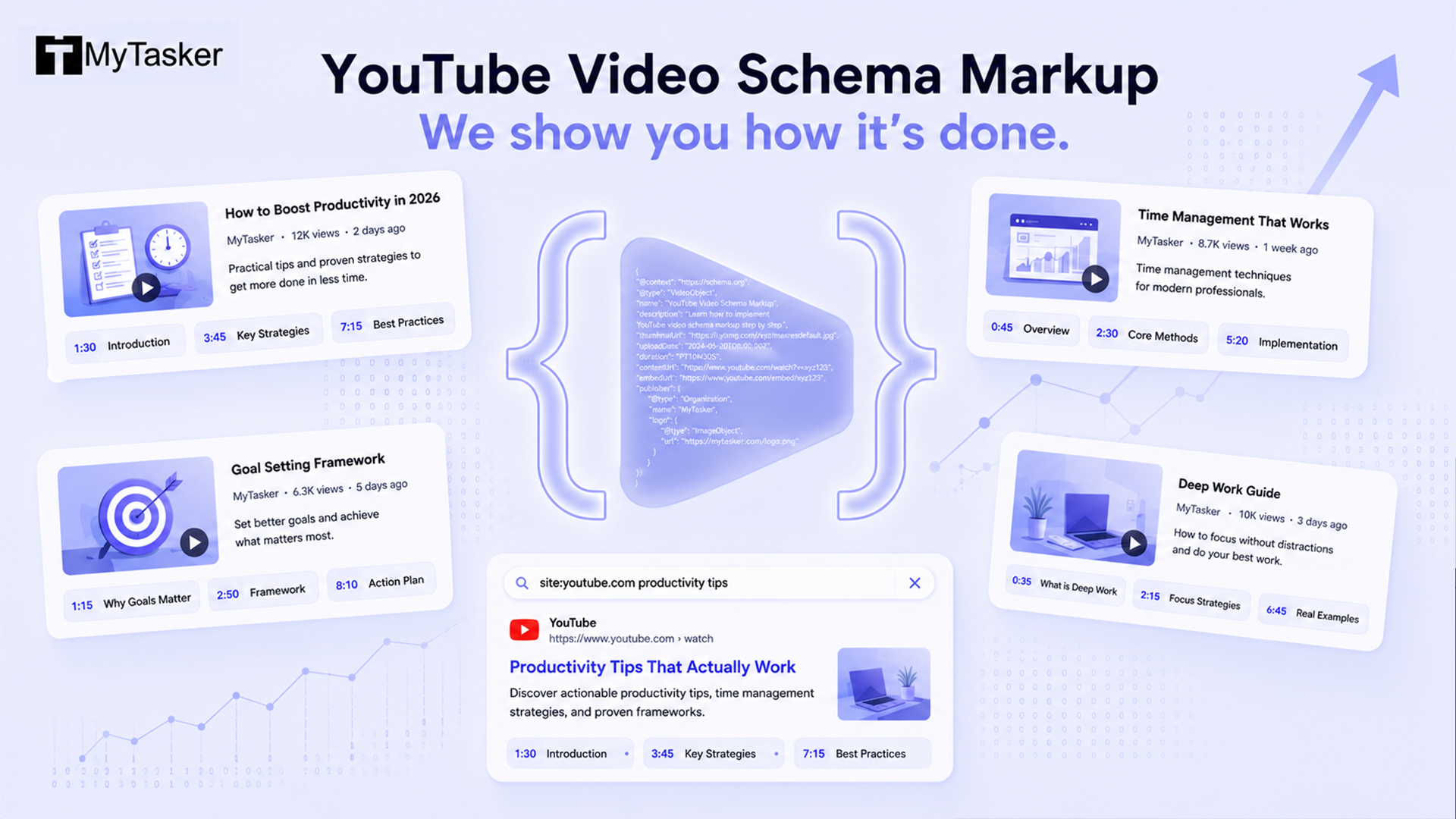
Most website owners embed a video and stop there: paste the iframe, hit publish, move on. It is an understandable shortcut. What they miss, however, is a significant opportunity. By adding VideoObject Schema Markup, you can transform a silent embed into a fully declared piece of content that Google knows how to read, index, and showcase. We are talking about rich snippets complete with thumbnails, duration labels, and clickable timestamps directly in the search results page.
This guide walks you through exactly why this matters, what you need to include, and how to implement it correctly — even if you have never touched structured data before.
Why Should You Care About Video Schema?
When you add structured data to a webpage, you are giving Google a precise "cheat sheet" about your content. Without it, Google has to guess what your video is about by scraping surrounding text and metadata. With it, you hand the search engine a direct declaration: here is the title, here is what it covers, here is how long it runs, here is where to find it.
The practical payoff is real:
Higher Click-Through Rates (CTR)
Search results enriched with a thumbnail, duration badge, and timestamp links are visually distinctive in a page full of plain blue links. Users are more likely to click a result that already tells them what to expect.
Better Topical Context
Schema helps search engines map your video to specific queries with greater confidence. When Google clearly understands what your content covers, it is better positioned to rank it for the right searches — not just the obvious ones, but adjacent queries your text alone might not have signalled.
Key Moments in Search Results
This is the highest-value feature for long-form content. If you supply chapter timestamps, Google can display a "Key Moments" section below your result — a visual timeline showing named sections of your video. Users can jump directly to the part they care about, which means a viewer searching for a specific answer may land on your page rather than a competitor's.
Video Carousels and Discovery
Google's video carousels — those horizontal rows of video thumbnails that appear above organic results for many queries — rely heavily on structured data to populate correctly. Without schema, your video is less likely to surface there.
Feeding AI-Driven Search and Overviews
Beyond traditional ranking signals, clean schema is a signal of content quality. Google's algorithms increasingly prioritize structured, accessible metadata as input for Search Generative Experiences (SGE) and AI Overviews. When you accurately mark up your video — name, description, chapters, duration — you are not just helping a crawler index a file. You are feeding the model that powers the user's next AI-generated answer. A well-structured video with accurate timestamps is more likely to be cited, summarized, or excerpted in AI answers than one with no schema at all. In other words, you are influencing not just where your content appears, but how it appears.
Understanding the Markup Format: Why JSON-LD
There are three ways to add structured data to a webpage: Microdata, RDFa, and JSON-LD. Google recommends JSON-LD, and for good reason. It lives in a separate script block in your HTML, which means it does not interweave with your visible content. You can update it, move it, or debug it without touching your layout. It is also far easier to read and write.
JSON-LD uses the Schema.org vocabulary — an open, community-maintained standard that major search engines agreed on to create a shared language for structured content. The VideoObject type within that vocabulary is specifically designed for video content.
The Essential Components
Your VideoObject markup needs at minimum these mandatory fields. Skipping any of them may cause Google to ignore the markup entirely.
| Property | What It Does | Example |
| name | The clear, descriptive title of the video | "How to Optimize Your Blog for SEO" |
| description | A summary of what the video covers — write this for humans, not bots | "A step-by-step guide to on-page SEO..." |
| thumbnailUrl | The URL of the thumbnail image (min. 112×112px; larger is better) | "https://example.com/thumb.jpg" |
| uploadDate | The original publish date in ISO 8601 format | "2026-06-19T08:00:00+08:00" |
| embedUrl | The YouTube embed URL — not the watch URL | "https://www.youtube.com/embed/VIDEO_ID" |
| duration | Total runtime in ISO 8601 duration format | "PT8M20S" (8 min, 20 sec) |
A note on duration format: ISO 8601 duration notation can look odd at first. The pattern is PT[hours]H[minutes]M[seconds]S. A 1-hour, 5-minute, 10-second video would be PT1H5M10S. A 45-second video would be PT45S. If you get this wrong, Google may flag a warning in Search Console.
Optional but Highly Recommended Fields
|
Property |
Why It Helps |
|
contentUrl |
The direct URL to the video file (if self-hosted) |
|
interactionStatistic |
View count data — signals authority to search engines |
|
hasPart (Clip) |
Used to define chapter timestamps for Key Moments |
|
publisher |
Associates the video with your organisation |
How to Implement It
You do not need to be a developer to do this. The process is: copy the template, fill in your details, and paste the code into your webpage. Here is a complete, production-ready example.
Basic Implementation
<script type="application/ld+json">
{
"@context": "https://schema.org",
"@type": "VideoObject",
"name": "How to Optimize Your Blog for SEO",
"description": "Learn the best strategies to rank your blog posts higher on Google in 2026, including keyword research, internal linking, and on-page structure.",
"thumbnailUrl": "https://example.com/thumbnail.jpg",
"uploadDate": "2026-06-19T08:00:00+08:00",
"duration": "PT8M20S",
"embedUrl": "https://www.youtube.com/embed/YOUR_VIDEO_ID",
"contentUrl": "https://www.youtube.com/watch?v=YOUR_VIDEO_ID"
}
</script>
Place this block inside the <head> or <body> tag of the specific page where the video is embedded. It should not go in a global site header unless that video appears on every page.
Advanced Implementation: Adding Key Moments (Chapter Timestamps)
If your video has distinct chapters or sections, this is where you earn the most visibility. The hasPart property lets you declare named clips with start and end times. Google uses this to generate the Key Moments section in search results.
<script type="application/ld+json">
{
"@context": "https://schema.org",
"@type": "VideoObject",
"name": "Complete On-Page SEO Guide for 2026",
"description": "A full walkthrough of on-page SEO techniques that work in 2026, covering keyword placement, content structure, schema markup, and Core Web Vitals.",
"thumbnailUrl": "https://example.com/seo-guide-thumb.jpg",
"uploadDate": "2026-06-19T08:00:00+08:00",
"duration": "PT22M45S",
"embedUrl": "https://www.youtube.com/embed/YOUR_VIDEO_ID",
"contentUrl": "https://www.youtube.com/watch?v=YOUR_VIDEO_ID",
"hasPart": [
{
"@type": "Clip",
"name": "Introduction",
"startOffset": 0,
"endOffset": 65,
"url": "https://www.youtube.com/watch?v=YOUR_VIDEO_ID&t=0"
},
{
"@type": "Clip",
"name": "Keyword Placement Strategy",
"startOffset": 65,
"endOffset": 310,
"url": "https://www.youtube.com/watch?v=YOUR_VIDEO_ID&t=65"
},
{
"@type": "Clip",
"name": "Structuring Your Content",
"startOffset": 310,
"endOffset": 620,
"url": "https://www.youtube.com/watch?v=YOUR_VIDEO_ID&t=310"
},
{
"@type": "Clip",
"name": "Adding Schema Markup",
"startOffset": 620,
"endOffset": 980,
"url": "https://www.youtube.com/watch?v=YOUR_VIDEO_ID&t=620"
},
{
"@type": "Clip",
"name": "Core Web Vitals and Video",
"startOffset": 980,
"endOffset": 1365,
"url": "https://www.youtube.com/watch?v=YOUR_VIDEO_ID&t=980"
}
]
}
</script>
The startOffset and endOffset values are in seconds. They must align with the chapters you have already defined inside your YouTube video — either via YouTube's chapter feature (timestamps in the video description) or through your own content structure. There is no benefit to declaring Key Moments in schema if they do not match actual navigable segments in the video.
Common Mistakes to Avoid
Using the Watch URL Instead of the Embed URL
https://www.youtube.com/watch?v=ID is not the same as https://www.youtube.com/embed/ID. The embedUrlproperty expects the embed format. Mix them up and you may receive validation warnings.
Providing a Thumbnail That Is Too Small
Google recommends a thumbnail of at least 1280×720 pixels for eligibility in video carousels. The absolute minimum is 112×112px, but larger images are displayed better and increase the visual impact of your rich snippet.
Adding Schema to a Page Where the Video Is Not Embedded
The structured data must live on the same page as the embedded video. If you have a centralised "videos" library page but the video is actually on a blog post, the markup belongs on the blog post.
Marking Up Videos You Do Not Have Permission to Present
If you are embedding third-party videos you do not own or control, be cautious about marking them up as your own content. The uploadDate and other properties should reflect the actual video's metadata.
Validate Before You Publish
Once you have added the code to your site, always verify it before considering the job done. Google provides two essential tools:
Google Rich Results Test — search.google.com/test/rich-results Paste your URL or paste the raw code snippet directly. This tool shows you exactly how Google parses your markup, highlights any errors or warnings, and previews how your rich result may appear in search.
Google Search Console — Enhancements > Videos After your page has been indexed, Search Console's Video enhancement report will show the status of all pages with video schema — including which ones are eligible for rich results and which have issues needing attention.
Make a habit of checking Search Console after any site migration, CMS update, or template change. Schema markup can quietly break when page structure changes, and you often will not notice until your video rich results disappear from search.
How to Actually Get the Code Onto Your Site
Understanding what schema markup does is one thing; getting it into your live website is another. Here is how to do it depending on your platform.
WordPress (the Most Common Platform)
Option 1: Use a Dedicated Plugin (Recommended for beginners)
If you want to avoid touching code, plugins like Yoast SEO Premium, Rank Math Pro, or Schema Pro all include built-in schema generators with visual interfaces. You fill in fields (video title, description, thumbnail) and the plugin generates the JSON-LD for you. No code knowledge required.
-
Yoast SEO Premium has a video schema module; you can manage it directly in the post editor.
-
Rank Math includes a schema builder that auto-detects videos in your content and can auto-generate basic markup.
-
Schema Pro is lightweight and focused solely on structured data.
Option 2: Add Code Manually
If you prefer full control or want to avoid plugin bloat:
-
Install a lightweight code insertion plugin like Code Snippets or Insert Headers and Footers.
-
Paste your JSON-LD script into the plugin's text field.
-
Choose "Run everywhere" or "Run on specific post IDs" depending on your needs.
This approach keeps your code visible and version-controlled without relying on a plugin's interpretation of your data.
Ghost (Modern Blogging Platform)
Ghost allows you to add custom code in two places:
-
Post-level: Edit the post, scroll to "Settings" (gear icon), paste JSON-LD into the "Code Injection" field.
-
Site-wide: Use Ghost Admin > Settings > Code Injection to add schema to all video posts (though per-post injection is more accurate).
Ghost also ships with some built-in OpenGraph meta tags, but you still need to manually add VideoObject schema for rich results.
Webflow, Statamic, and Other Modern Builders
Most modern website builders like Webflow or Statamic include a "Custom Code" or "Head Injection" section. Look for:
-
Custom code blocks or sections where you can paste arbitrary HTML
-
Page settings → SEO or Advanced → Code Injection
-
A dedicated schema or structured data panel (some newer platforms include this natively)
If your platform does not expose an easy way to add code, contact their support — they often add features based on user demand.
Shopify (E-commerce)
Shopify has limited native structured data support for video, but you can:
-
Add JSON-LD via Shopify's Page.metafields or Product.metafields (requires theme customization)
-
Use an app like PageFly or Gorgias that includes schema management
-
Directly edit your theme's product.liquid or page.liquid template files and paste the code into the <head>section
For product pages with embedded videos, a Shopify-certified schema app is often the cleanest approach.
Static Sites (HTML, Jekyll, Hugo, Next.js)
If you control your HTML directly, simply paste the JSON-LD script block into your page template's <head> or <body>section. This is the most straightforward approach and gives you complete transparency.
Avoiding Common Implementation Pitfalls
Don't Duplicate Schema Across Your Site
If you use a plugin, make sure it is not generating schema and you are also manually inserting it. Duplicate markup confuses Google and may trigger a warning in Search Console.
Test After Every Major Update
Whenever you update your CMS, plugin, or theme — or migrate platforms — re-validate your schema markup. Code can break silently, and you may not notice until your rich results vanish from search.
Keep Your Data in Sync
If you use a plugin to generate schema automatically, ensure the video metadata it pulls (title, description, duration) matches what is actually in your YouTube embed and video description. Out-of-sync data looks unprofessional and may confuse both crawlers and users.
The Bigger Picture
Video schema is a small investment with a disproportionate return. It takes under ten minutes to implement correctly on a single page, and once it is in place, it signals ongoing professionalism and technical accuracy to Google's crawlers every time they visit.
As Google continues to evolve how it surfaces video content — through AI Overviews, Search Generative Experience, and video carousels — pages with clean, complete structured data are better positioned to appear in those new formats as they roll out.
Start with your highest-traffic video pages. Get the basic markup in place, validate it, then come back and layer in Key Moments for any video longer than five minutes. That combination — accurate base markup plus timestamped chapters — is currently the most reliable path to winning additional real estate in the search results page.
Pro Tip: Keep Schema Metadata Fresh in 2026
In 2026, content is dynamic. If you update the video on YouTube — or change the title, description, or chapters — remember to update the schema markup on your page. Stale metadata is a signal of poor maintenance, which AI models may interpret as a reason to lower the "authority" of your content compared to a fresher, more accurate source. Regular audits of your schema markup should be part of your ongoing SEO maintenance routine.