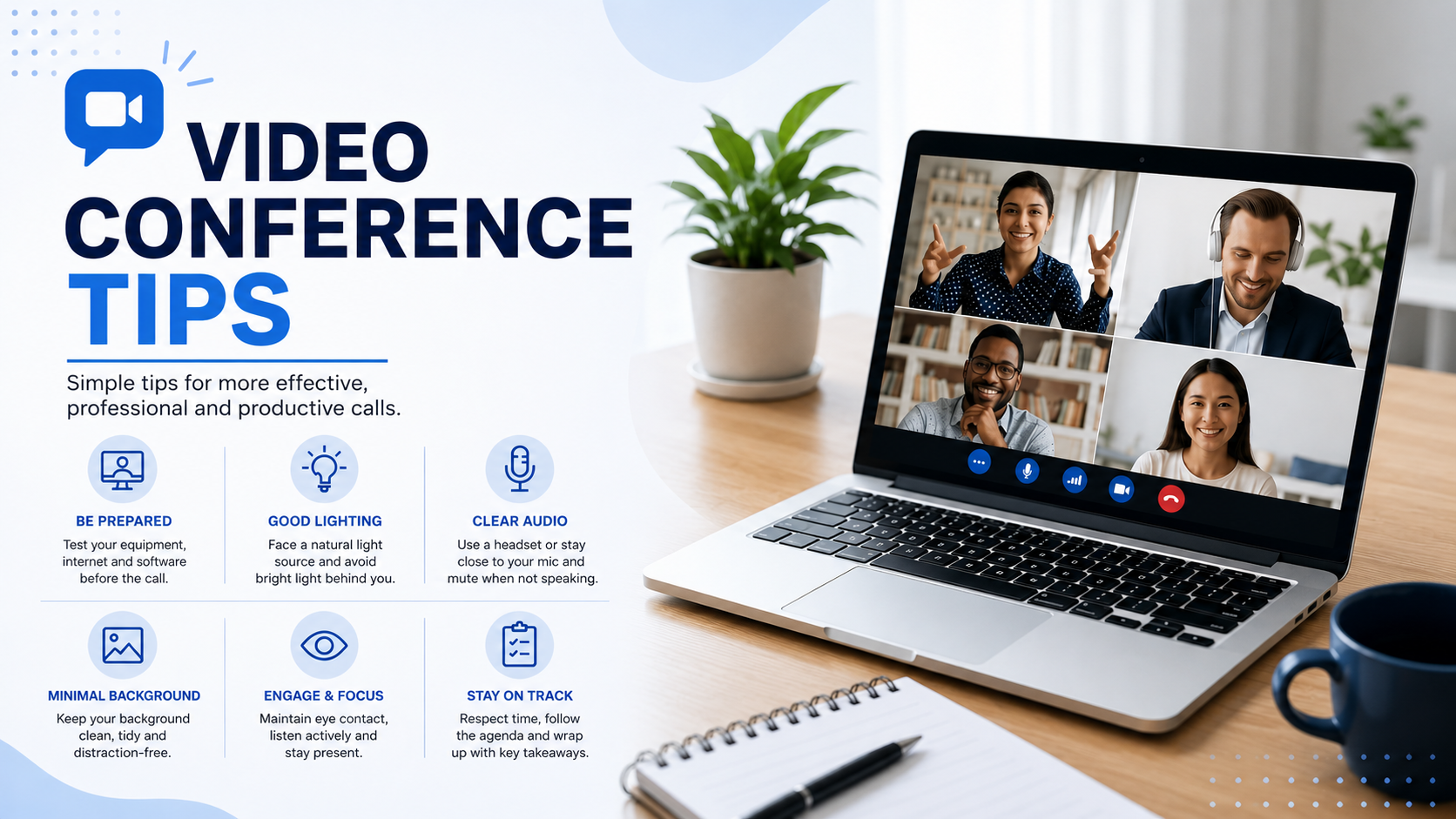
Quick answer: The most effective video conference tips are: test your tech before you join, use a wired connection when possible, sit at eye level with good lighting, mute yourself when not speaking, follow a clear meeting agenda, assign a meeting facilitator, and have a backup communication plan ready. Together, these habits fix the majority of issues that make virtual meetings feel unproductive.
Video calls are no longer a workaround — they're core infrastructure. The average professional now attends more than five video calls a week, and remote workers average even more. With that much time spent on camera, small habits compound fast: a clean setup, good video conferencing etiquette, and a little structure can turn a forgettable call into a genuinely productive one, while a shaky connection or a rambling agenda can drain 30 minutes nobody gets back.
This guide covers practical, tested tips across five areas — technical setup, video meeting etiquette, facilitation, tools, and troubleshooting — plus answers to the questions people ask most about video conference challenges.
Why Video Conferencing Habits Matter More Than Ever
Video conferencing has moved firmly from pandemic stopgap to permanent workplace infrastructure. A few numbers make the stakes clear:
-
The average employee now spends over 11 hours a week in meetings, and a meaningful share of that time happens on video.
-
Most professionals admit to multitasking during video calls, and a majority say they're more distracted on video than in person.
-
Fewer than 15% of meeting rooms worldwide are properly equipped for video, even though nearly all meetings now include at least one remote participant — a gap that shows up constantly in hybrid meetings where some attendees are in the room and others are dialing in.
-
AI-powered meeting tools — transcription, summaries, and note-taking assistants — have seen explosive adoption, with usage growing by double digits year over year.
The takeaway: the tools keep getting smarter, but most meeting problems still come down to preparation, setup, and basic etiquette — not software.
Before the Call: Preparation Tips
1. Build in a buffer. Log in 5–10 minutes early to test your camera, microphone, and internet connection. This single habit prevents the majority of "can you hear me?" delays.
2. Send a clear meeting agenda in advance. Even a three-bullet agenda keeps a call on track and gives people a reason to show up prepared rather than passively listening. Share it far enough ahead that remote participants can add items or flag conflicts.
3. Confirm your tools ahead of time. If you're using AI note-takers, recording software, or chat integrations, test them before the call starts, not during it.
4. Have a backup communication plan. Keep an alternate video link, dial-in number, or messaging channel (Slack, WhatsApp, SMS) ready so the meeting can continue if your primary platform freezes or someone gets disconnected.
5. Assign a meeting facilitator. One clear owner — whether that's you, an executive assistant, or a rotating team member — keeps the meeting moving, manages meeting protocols like timekeeping and turn-taking, and avoids the "who's driving this?" confusion. For large webinars or all-hands calls, some organizations also use a dedicated video conference producer to manage slides, breakout rooms, and tech issues separately from whoever is speaking.
6. Test on the device you'll actually use. If you're joining from a mobile device rather than a laptop, check the app beforehand — screen sharing, chat, and reaction features can behave differently on mobile.
Technical Setup Tips: Audio and Video Gear
7. Use a wired connection when possible. Ethernet is more stable than Wi-Fi and significantly reduces dropouts, especially for calls with multiple video streams.
8. Position your camera at eye level. Prop your laptop on a stack of books or a stand — a low camera angle is one of the most common (and easiest to fix) video mistakes.
9. Get your video conference lighting right. Light your face, not your background — a window or lamp in front of you does more for call quality than any camera upgrade. Avoid strong backlight from a window behind you, which throws your face into shadow.
10. Clean up your video conference background. A tidy, uncluttered space (or a simple virtual background) keeps the focus on you instead of what's happening behind you — especially important in client-facing or hybrid meetings.
11. Invest in decent audio and video gear if you're on calls daily. A basic external microphone and webcam upgrade audio and video quality far more than any software setting, and audio quality affects professionalism more than video resolution does.
12. Close background apps. Unused programs quietly eat bandwidth and processing power, which shows up as lag or frozen video exactly when you don't want it to.
13. Know your minimum bandwidth needs. As a rule of thumb, budget at least 3 Mbps upload and download per HD video participant — more if screen sharing or multiple video tiles are involved.
Video Conferencing Etiquette
14. Mute yourself when you're not speaking. Background noise is one of the top complaints in any video conferencing etiquette guide, and it's the easiest one to eliminate — especially on calls with many remote participants.
15. Keep your camera on when it's reasonable to. Camera-on meetings tend to feel more engaged, though it's worth respecting camera-off norms your team has agreed on as part of your meeting protocols.
16. Speak directly into the camera lens, not the screen. It feels unnatural at first, but it's what makes eye contact read as genuine to other participants — a small but important piece of video meeting etiquette.
17. Mind your body language. Keep gestures within frame, sit with good posture, and avoid multitasking that's visible on camera — people notice more than you'd expect.
18. Dress for the meeting, not just the outfit you happen to have on. Matching the professionalism level of an in-person equivalent sets the right tone, and is doubly true in hybrid meetings where some attendees are dressed for the office.
19. Follow the same etiquette on mobile. Video conference etiquette doesn't relax just because you joined from a mobile device — find a quiet, well-lit spot rather than joining from a moving car or a noisy room.
Facilitation Tips for the Meeting Host
20. Start with a clear purpose. State what the meeting needs to accomplish in the first 30 seconds, so everyone's aligned before diving in.
21. Use gallery view for larger groups. It's easier to read the room and notice who wants to speak when you can see everyone at once, including remote participants in a hybrid meeting.
22. Actively manage participation. Call on quieter attendees by name, and don't let the loudest voice dominate the full call — this matters even more in hybrid meetings, where remote participants can get talked over by people in the room.
23. Use interactive tools to keep people engaged. Polls, reactions, whiteboards, and breakout rooms turn a passive call into something people actually participate in, rather than half-listen to.
24. Assign someone to own meeting notes. Whether it's a person or an AI meeting assistant, real-time transcription and summaries are now standard in most video conferencing tools — let the tool or a designated note-taker handle it so people can stay present instead of typing.
25. End with clear next steps. Summarize decisions and owners before you close the call — this is often the single biggest driver of whether a meeting actually leads to action.
Video Conferencing Software and Tools
Most of the tips above apply regardless of platform, but the video conferencing software you choose does affect what's possible. Zoom, Microsoft Teams, and Google Meet are the most widely used platforms globally, while Cisco WebEx remains a common choice in enterprise, healthcare, and government settings thanks to its security and compliance features. Beyond the core video conferencing tools, most platforms now include interactive tools — polls, whiteboards, breakout rooms, and AI-generated meeting notes — that are worth turning on for anything beyond a quick one-on-one call.
Video Conference Challenges and Quick Fixes
|
Problem |
Quick Fix |
|---|---|
|
Others can't hear you |
Check mute status, mic connection, and system volume |
|
Video freezing or lagging |
Switch to a wired connection, close background apps |
|
Unstable connection |
Turn off video temporarily to preserve audio quality |
|
Screen share not working |
Share a specific app instead of your full screen |
|
Echo or feedback |
Use headphones instead of speakers |
|
Remote participants feel left out in hybrid meetings |
Use gallery view, repeat questions asked in the room, assign a facilitator to watch the chat |
|
Primary platform crashes mid-meeting |
Switch to your backup communication plan (alternate link, dial-in, or chat channel) |
Frequently Asked Questions
What are the most important video conference tips?
Test your audio and video before the call, use a wired connection if possible, sit at eye level with good lighting, mute yourself when not speaking, and follow a clear meeting agenda. These fix the majority of common video conference challenges.
How can I make my video calls look and sound more professional?
Position your camera at eye level, get your video conference lighting right by facing a light source, clean up your video conference background, and use an external microphone if you're on calls regularly.
What's the best way to fix a bad internet connection during a call?
Switch to a wired Ethernet connection if available, close bandwidth-heavy background apps, or turn off your video temporarily to preserve audio quality until the connection stabilizes.
Should I keep my camera on during video meetings?
In most professional settings, yes — camera-on meetings tend to feel more engaged and personal. That said, follow your team's specific meeting protocols, since some organizations intentionally allow camera-off time to reduce meeting fatigue.
What video conferencing platforms and tools are most commonly used?
Zoom, Microsoft Teams, and Google Meet are the most widely used video conferencing software globally, with Cisco WebEx also common in enterprise and regulated industries. Most platforms now include interactive tools like polls, whiteboards, and AI-generated meeting notes.
How do I run a more productive video meeting as the host?
Send a clear meeting agenda in advance, assign a meeting facilitator (and a video conference producer for large webinars), start with the meeting's purpose stated up front, actively manage participation from both in-room and remote participants, and close with clear next steps and owners.
What's different about hybrid meeting etiquette?
Hybrid meetings need extra intention: use gallery view so remote participants are as visible as people in the room, repeat questions or comments made in-person for remote attendees, and have a facilitator actively watch the chat so remote voices don't get missed.
Should I have a backup communication plan for video calls?
Yes, especially for important meetings. Keep an alternate video link, dial-in number, or messaging channel ready so the meeting can continue smoothly if your primary video conferencing software crashes or someone gets disconnected.
Are AI note-taking tools worth using in video meetings?
Yes, for most recurring meetings. AI transcription and meeting notes tools have seen rapid adoption because they let participants stay focused on the conversation instead of manually taking notes.
Final Note
Most video conferencing problems trace back to a handful of fixable habits — not the platform itself. A stable connection, decent lighting, a clear agenda, and one person driving the meeting will solve the vast majority of what makes virtual meetings frustrating. Start with the basics in this guide, and layer in AI tools where they genuinely save time rather than add complexity. The goal isn't a fancier setup — it's a meeting people actually leave feeling like it was worth their time.